 Orbital Focus
How to Block Apps on iPhone: Four Ways and Their Loopholes
Apple gives you several ways to make an app unavailable, but they do different jobs. Start by deciding whether you need a schedule, a daily budget, a download restriction, or one protected focus session.
 By Chris HabibUpdated 10 min read
The bottom line
Use Downtime for a repeating off-hours schedule, App Limits for a daily budget, and Content and Privacy Restrictions to control downloads or specific web addresses. For one focus block, use a session-based shield and remove its override path before you start.
An iPhone “block” can mean four different things: a daily allowance, a recurring schedule, a restriction on installing or deleting apps, or a shield that lasts for one focus session. Choose the job first. Otherwise it is easy to set a one-minute App Limit and discover that the override is one tap away.
The instructions and screenshots below were checked on an iPhone 17 Pro Max simulator running iOS 26.0 on August 25, 2026. Apple changes labels between releases, so use the function of the screen if your wording differs.
Pick the right kind of block
| What you want | Use | What it actually does | Main escape route |
|---|---|---|---|
| A daily budget for one app | App Limits | Counts use toward a daily allowance | Request or enter more time |
| Most apps unavailable on a schedule | Downtime | Limits apps outside the Always Allowed set | Change the schedule or use the passcode |
| Prevent installing, deleting, or making purchases | Content & Privacy Restrictions | Restricts store and system capabilities | Change the restriction with the passcode |
| Selected apps unavailable for one work block | A Screen Time-based focus app | Shields the selected apps while its session runs | Depends on the app's strictness and recovery design |
For a website rather than an app, use the steps in how to block websites. For a feed with both an app and browser route, the YouTube and Shorts guide closes both paths.
Before you change Screen Time
Make a short allow-list first. Keep Phone, Messages, Maps, password and authentication tools, transit, medical tools, and any app required for work or care available when needed. A stricter block is not automatically a safer block.
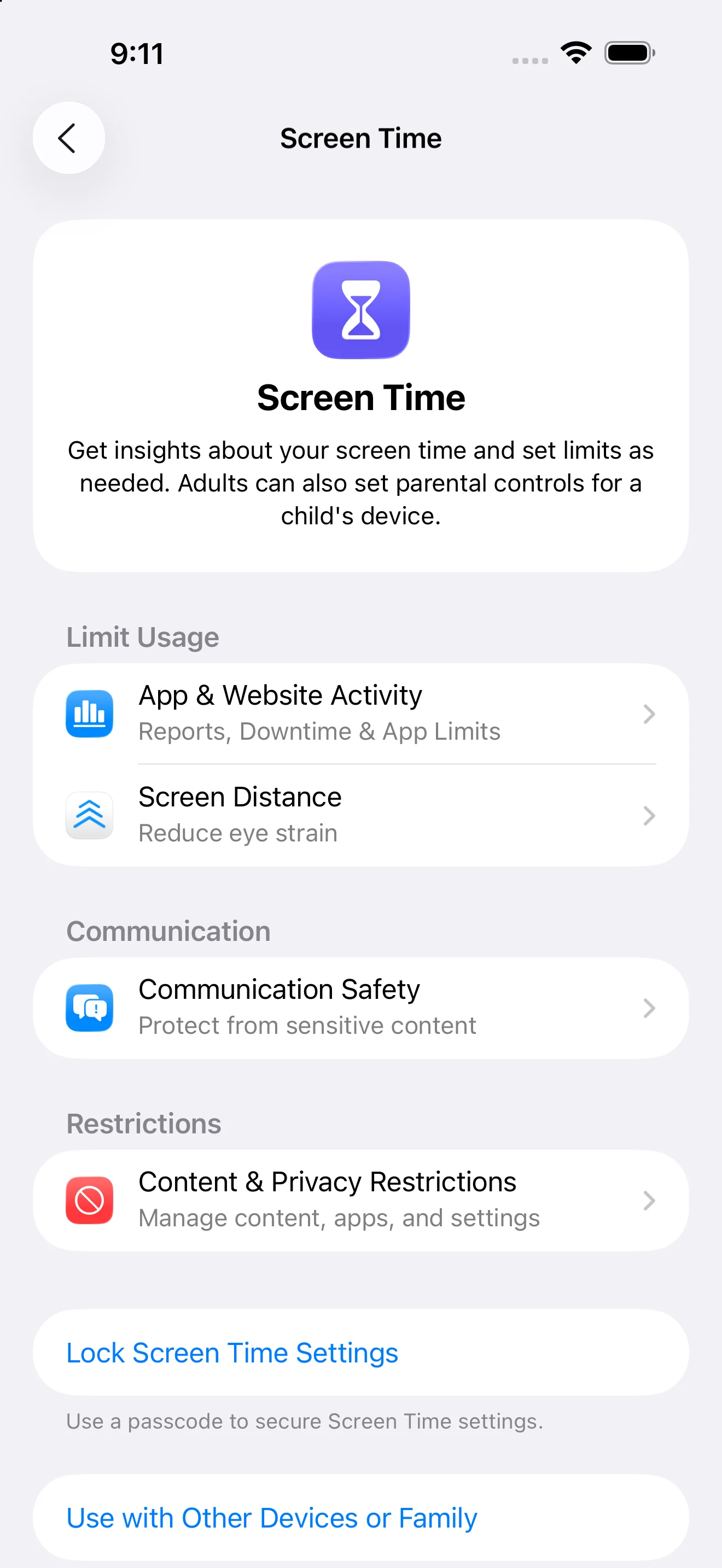
Then open Settings > Screen Time. If Screen Time is not active, open App & Website Activity and turn it on. The overview is the hub for Downtime, App Limits, Always Allowed, and Content & Privacy Restrictions.
Method 1: Give one app a daily limit
- Open Settings > Screen Time > App Limits.
- Tap Add Limit.
- Expand a category, select the individual app, and tap Next.
- Set the daily allowance. Use Customize Days if weekends should differ.
- Save the limit, then open the app after its allowance is exhausted to verify the shield.
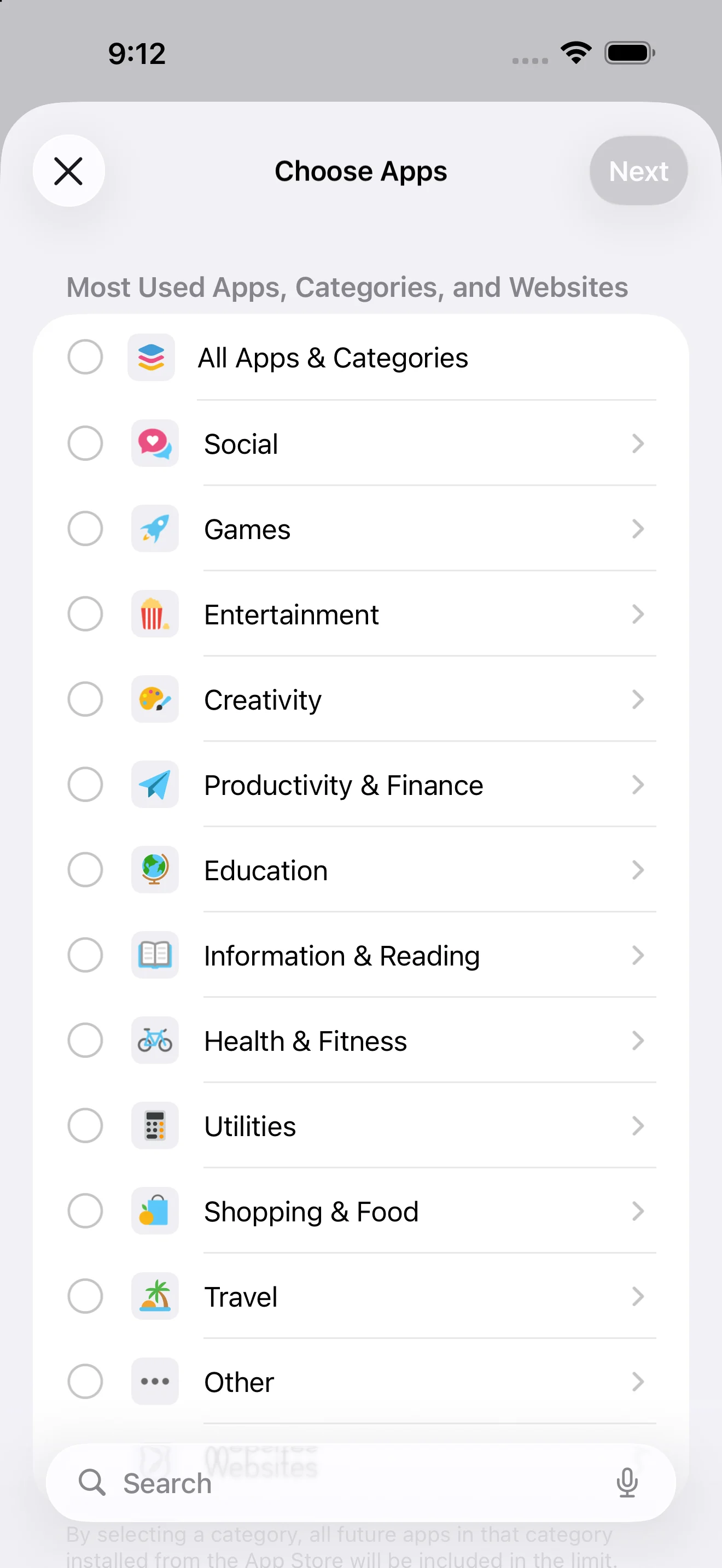
App Limits are good for a budget, not an absolute ban. If you control the Screen Time passcode, you retain a route to change the rule. That may be exactly right for a self-directed limit. If it is too easy, decide before the day starts whether a trusted person should hold the passcode.
Method 2: Schedule Downtime
Downtime is the built-in option for making most apps unavailable during a recurring window.
- Open Settings > Screen Time > Downtime.
- Turn on Scheduled.
- Choose Every Day or Customize Days.
- Set the start and end times.
- Return to Screen Time and open Always Allowed to keep essential apps available.
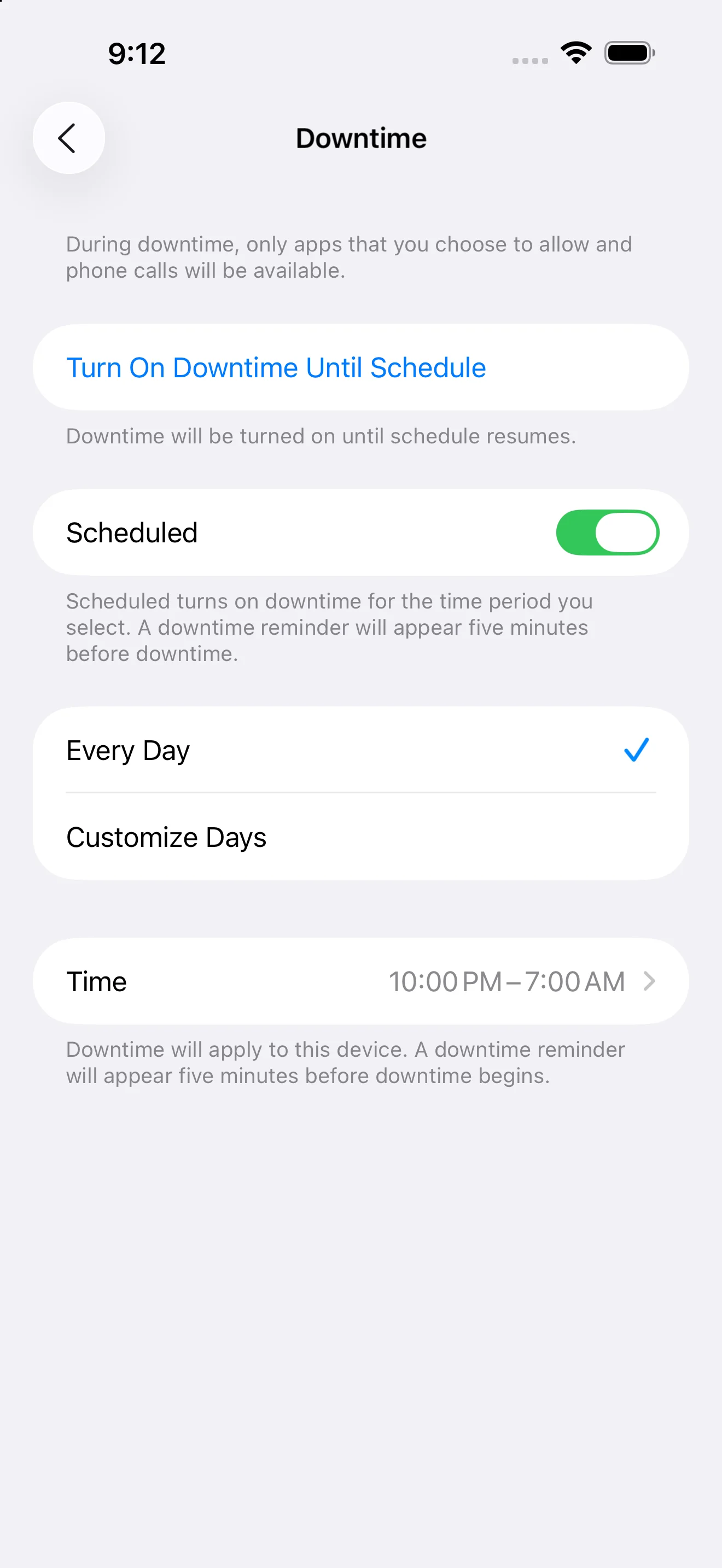
Some older instructions mention a separate Block at Downtime toggle. That is not present on the iOS 26.0 simulator screen shown here, so do not hunt for it. Confirm the current behavior by opening a non-allowed app during the scheduled period.
Method 3: Restrict installs and deletions
Content & Privacy Restrictions are useful when deleting a distracting app is not enough because you reinstall it immediately.
- Open Settings > Screen Time > Content & Privacy Restrictions.
- Turn on Content & Privacy Restrictions.
- Open App Installations & Purchases.
- Set installing apps, deleting apps, or in-app purchases to the rule you need.
- Protect Screen Time with a passcode if the restriction should survive an impulsive settings change.
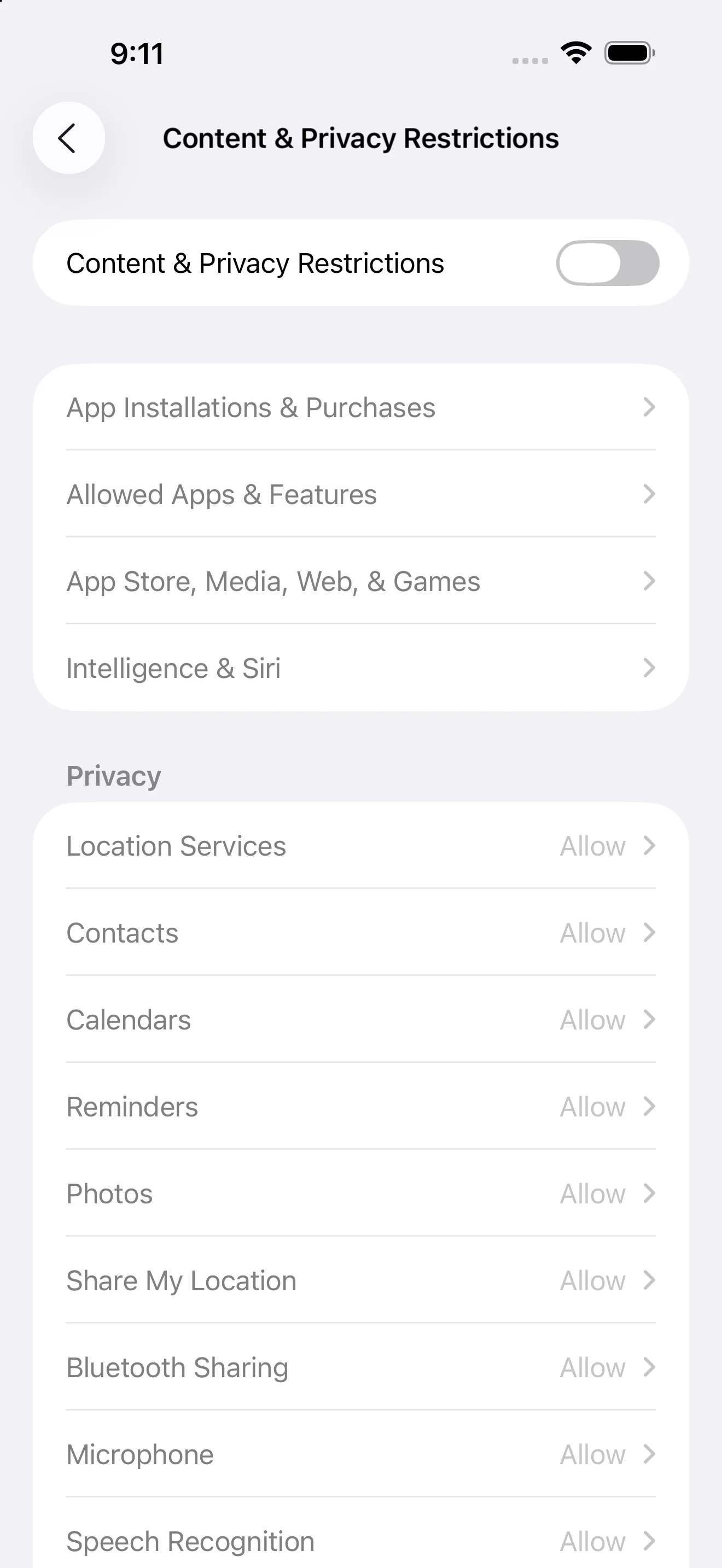
This setting governs installation and system capabilities. It does not turn an already-installed third-party app into a timed focus block. Use App Limits, Downtime, or a session blocker for that job.
Method 4: Block selected apps for one session
A Screen Time-based focus app can ask you to select distracting apps and apply Apple's shield during one timed session. That is useful when you want Instagram unavailable for 45 minutes but need it again after work.
In Orbital Focus, the block is attached to a fixed mission rather than an all-day schedule. Choose the destination and duration, select the apps to shield, preserve essential apps, then launch. The 45-minute timer is a good no-install way to test whether that duration fits before creating a stricter session.
The exact recovery behavior varies by blocker. Read it before starting. A responsible setup tells you how emergency access works and does not encourage blocking tools needed for safety.
Close the loophole without trapping yourself
Use this preflight checklist:
- [ ] The distracting app is selected individually, not assumed to be inside a category.
- [ ] The schedule uses the correct days and local time.
- [ ] Phone, Messages, Maps, authentication, and urgent-care tools remain available.
- [ ] The browser route is also controlled if the service has a website.
- [ ] The Screen Time passcode plan is decided before the block begins.
- [ ] One recovery path exists for a genuine mistake.
- [ ] A selected app has been opened once to verify that the expected shield appears.
The app-blocker comparison explains the difference between a pause, a recurring schedule, a locked session, and a physical commitment device.
Frequently asked questions
Can you block a specific app on an iPhone?
Yes. For a daily allowance, go to Settings, Screen Time, App Limits, Add Limit, then select the individual app and set the time. For a focus session, a Screen Time app such as Orbital Focus can shield only the apps you select while its session is active. Built-in limits are still settings you control, so decide how you will handle the override before the block starts.
Can you block all apps on an iPhone?
Downtime can make most apps unavailable on a schedule while leaving calls, messages, and apps in Always Allowed. Apple keeps essential system paths available. If you need a working phone rather than a sealed device, an allow-list is safer than trying to remove everything.
How do I permanently block an app?
There is no self-imposed iPhone block that is literally permanent while you still control the device and its passcode. You can remove the app, prevent new installs with Content and Privacy Restrictions, use a Screen Time passcode held by someone you trust, or use stricter third-party blocking. Keep an emergency path for maps, banking, authentication, and safety.
Sources and version notes
- Apple: Block apps, app downloads, websites, and purchases on iPhone, checked August 25, 2026.
- Apple: Set schedules with Screen Time on iPhone, checked August 25, 2026.
- The four screenshots are original Orbital Focus editorial captures from Apple's iOS 26.0 simulator on the allowed iPhone 17 Pro Max simulator. They are not mockups.
Corrections for a newer iOS label are welcome at habib225@gmail.com. Want the block tied to a visible finish line? Start an Orbital Focus mission.

Give your next focus block a destination.
Pick a mission length, launch, and keep distracting apps sealed until you arrive.
 How to Brain Dump
 25 Morning Routine Ideas
 The 8 Best ADHD Focus Apps
 The 7 Best iPhone App Blockers